Project
- Enable users to check security alerts and verify that each chat member and device belong in their conversation.
- Design a way for users to verify that their Messenger chat is end-to-end encrypted and secure.
Objective
- Achieve brevity while providing all information needed to complete this complex process.
- Prioritize needs of power users who will likely speed through the flow, but still serve standard users through accessible language and education.
User research
Our user research team provided user personas they derived from their research sessions on Messenger's security features and pinpointed which persona wanted this feature and what they needed it to do.
At Risk Users
Description: This project is specifically for celebrities, journalists, activists, politicians and other people who are at a higher risk of having their security compromised on Messenger. They want to ensure no one can read their messages outside of the conversation.
Almost all At Risk Users understand basics of encryption and device verification, but some may require more education than others.
Tone Requirements: Informative and educational (when helpful and relevant)
Content requirements:
- Reassurance at the right moments that no unauthorized party can access their messages to develop trust.
- Access to information on technical concepts they're less familiar with.
- Notifications of all activity (like new devices being added) in their chat threads.
- Visibility and access to all ways to verify all devices in their chat.
Standard and Privacy Aware Users
Description: Regular users who moderately care or don't care about security, privacy or encryption and enjoy our apps without changing the default settings. These people are not technical and rarely visit their security or privacy settings at all. They are the vast majority of our users.
Tone: Educational
Content Requirements: Brief and simple explanation of encryption and how it may enhance their experience for people who stumble across this new setting.
Content design ideation
My product designer and I partnered to create a design pattern and content design for each archetype to visualize the elements and language on each flow. We combined and selected different elements to create the final version.
Verifying devices flow
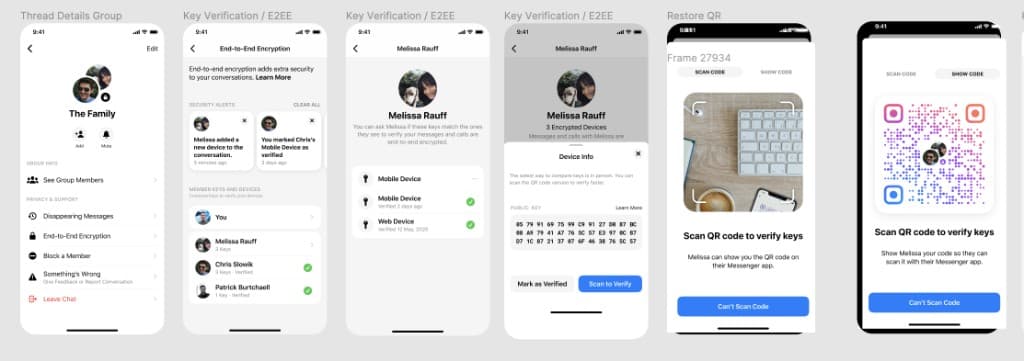
On your chat's details page, the End-to-End Encryption setting sits under the Privacy and Support menu.
“End to End Encryption” settings
When you tap that setting, the simple definition at the top tells you what this page covers in a way that's accessible to all our user personas. The “Learn More” link will go to our help center article (also written by me) to further educate you.
The security alerts section below shows you all security activity regarding the chat. These alerts demonstrate that we care about informing you of all potential breaches to your chat's security.
The “Member Keys and Devices” section gives you a list of all members in the chat whose devices you can verify. When you tap on a chat member's name, you'll go to the person's profile page.
Melissa Rauff Profile
On this page, the explanation at the top teaches or reminds you to check the key ID for each of the person's devices to make sure they belong to the person you're talking to. “Ask Melissa” also sounds human and conversational.
The device labels and verification dates lets you keep track of all devices you've verified for the conversation. When you tap on a device option, you'll be taken to its Device Info page.
Device Info page
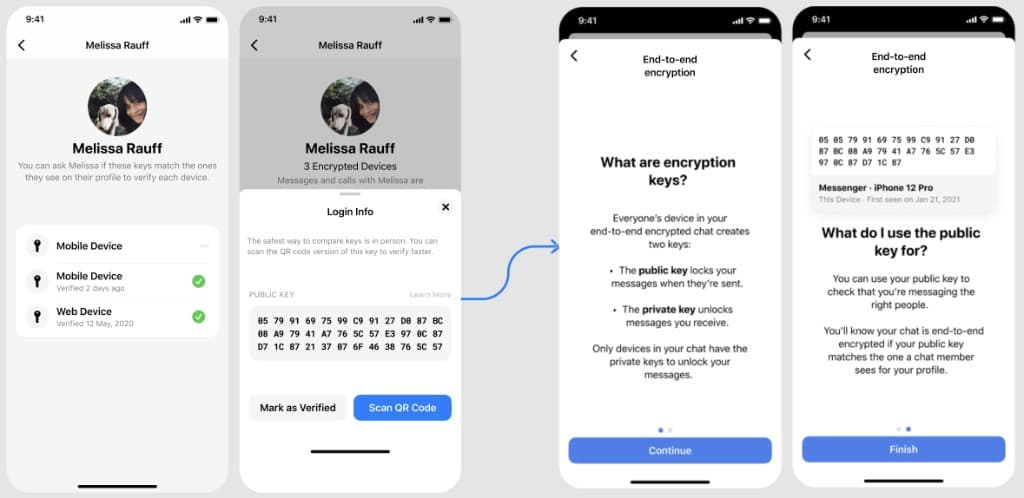
When you go to the Device Info page, you see the key's ID so you can compare it with the one your chat member sees over the phone or through a video call. I suggest using some safety tips and the QR key code scanner so you can scan Melissa's QR key code in person instead. I explain how to use it in simple terms and thoughtfully add “faster” to highlight the convenience factor and our consideration of your experience.
(Note: The Can't Scan Code design is still in development).
Key education
The user education flow
On the Device Info page, you can tap the Learn More button if you're stuck and not sure exactly what a key is and how to use it to verify your chat's security. Tapping on it will start an education flow that explains in plain language what encryption keys are, how they function and how to use the public key to check that your Messenger conversation is end-to-end encrypted.